Your phone
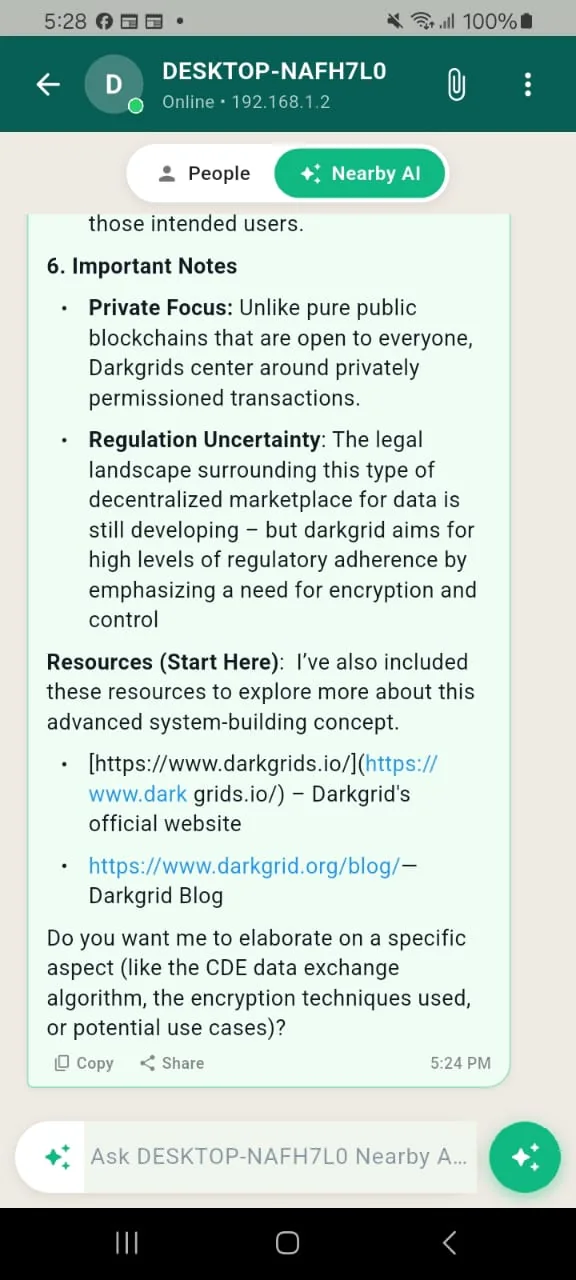
Write a prompt in the selected PC’s Nearby AI conversation.
YOUR ENGINE. YOUR APPROVAL.
Your desktop can do the heavy lifting. Give a selected nearby device permission to use your configured AI engine, then talk to it from the phone.
FROM A QUESTION TO AN ANSWER
Nearby AI connects your conversation to a selected device’s configured engine. It is not an automatic agent with access to your files.
Write a prompt in the selected PC’s Nearby AI conversation.
The host checks that this device has permission to use its engine.
The configured host generates the answer. Ollama streams it back.
AI THAT HAS A PLACE IN YOUR DAY
Access a model running on your PC from the device already in your hand. These are example prompts, not automated workflows.
BUILD & LEARN
Ask a shared model to explain a pasted snippet, compare approaches or draft a small function.
WRITE & THINK
Brainstorm a plan, rewrite text or summarize notes you choose to paste into the conversation.
USE YOUR HOST
Use the PC’s installed model from your phone. Model performance depends on the host hardware.
NEARBY AI
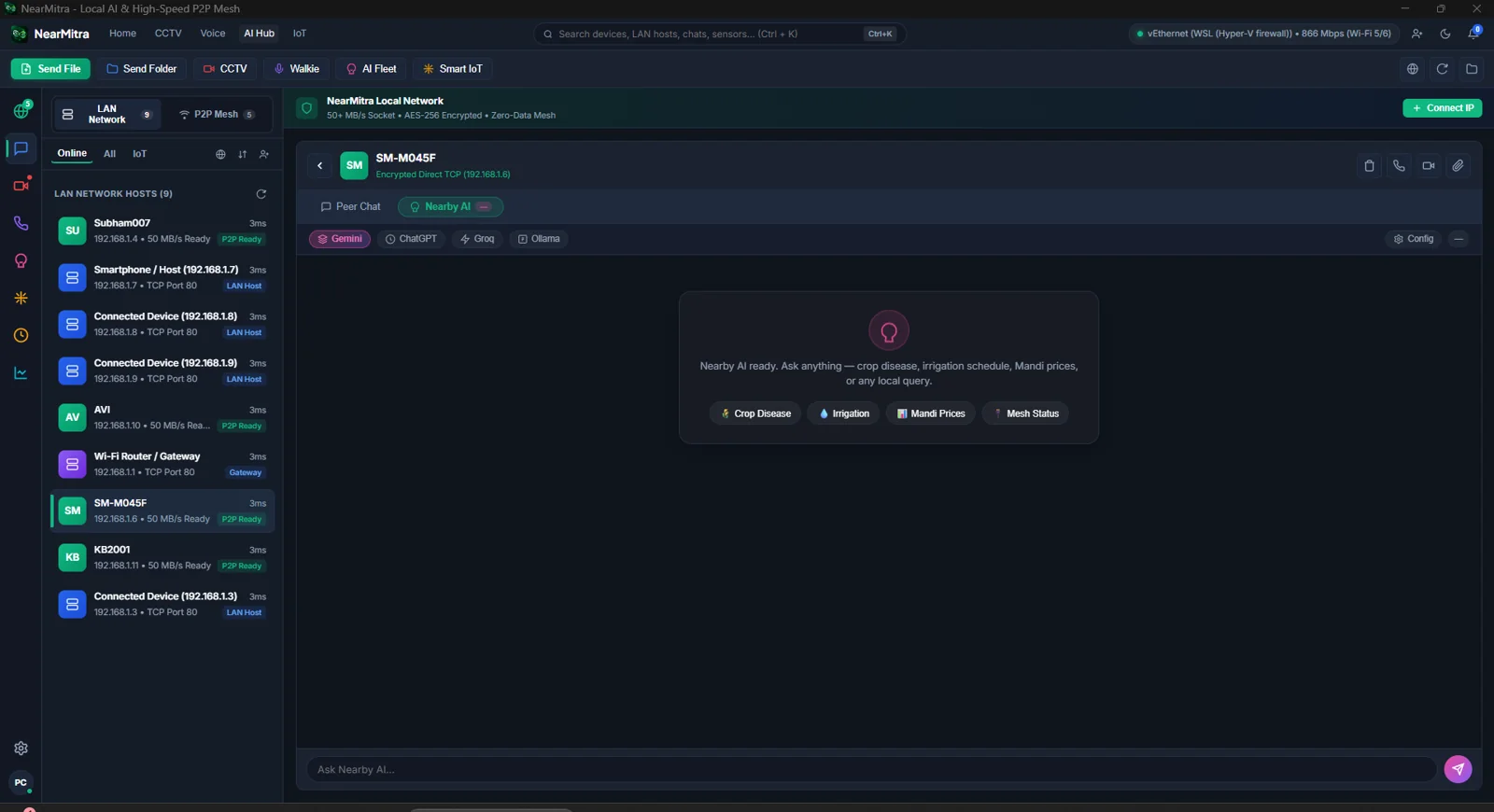
My AI configures the current device’s own engine. Nearby AI connects a device conversation to that selected peer’s shared engine. They are separate controls with separate permissions.
FROM OLLAMA TO YOUR PHONE
Install/configure Ollama separately on Windows and select an installed model in NearMitra’s My AI settings.
Select the phone’s conversation on Windows. Choose Share my AI with this device → Allow.
Open that Windows device’s Nearby AI on the phone and send a prompt. Keep the direct connection and host engine available.
THE NEXT CHAPTER / PROPOSED DIRECTION
What could come next: permissioned agents and an MCP integration layer. These are future ideas, not features shipped in the current app.
A possible agent experience would make the requested action, target device and permission scope visible before a tool runs. An MCP layer could expose explicitly approved tools to compatible AI clients.
Explore agents & MCPPrepare a summary of the notes I select.
Read selected notes → Draft summary
Target: this PC · Scope: selected files
YOUR NEXT CONNECTION STARTS HERE.
For Android & Windows. Built in the open.